0接上文### 【EASY EAI Nano-TB(RV1126B)开发板试用】桌面系统功能测试-安装桌面系统chromium-browser
和【EASY EAI Nano-TB(RV1126B)开发板试用】命令行功能测试-红绿灯按钮项目-Python实现简单的Web服务器
桌面系统可以用图形web等等控制系统,
环境准备
- EASY EAI Nano-TB(RV1126B)开发板 :
EASY-EAI-Nano-TB-Ubuntu-22.04-firmware_20250905一款用于嵌入式ai系统的开发板。* 红绿灯板 :一个简单的外部设备,包含红、绿、黄三个LED灯。通过wifi链接网络。安装桌面系统和chromium-browser
- wifi路由器 :CMCC-e2dd(密码:jdtsyahg)
- 工具要求 :支持SSH连接的客户端(MobaXterm )
- Ubuntu-22.04 :Ubuntu-22.04.5 LTS (GNU/Linux 6.1.118 aarch64)
- Python :Python 3.10.12 (main, Aug 15 2025, 14:32:43) [GCC 11.4.0] on linux。
直接使用pip3安装 [ sh 库]
无线网络ssh登陆
pip3 install sh
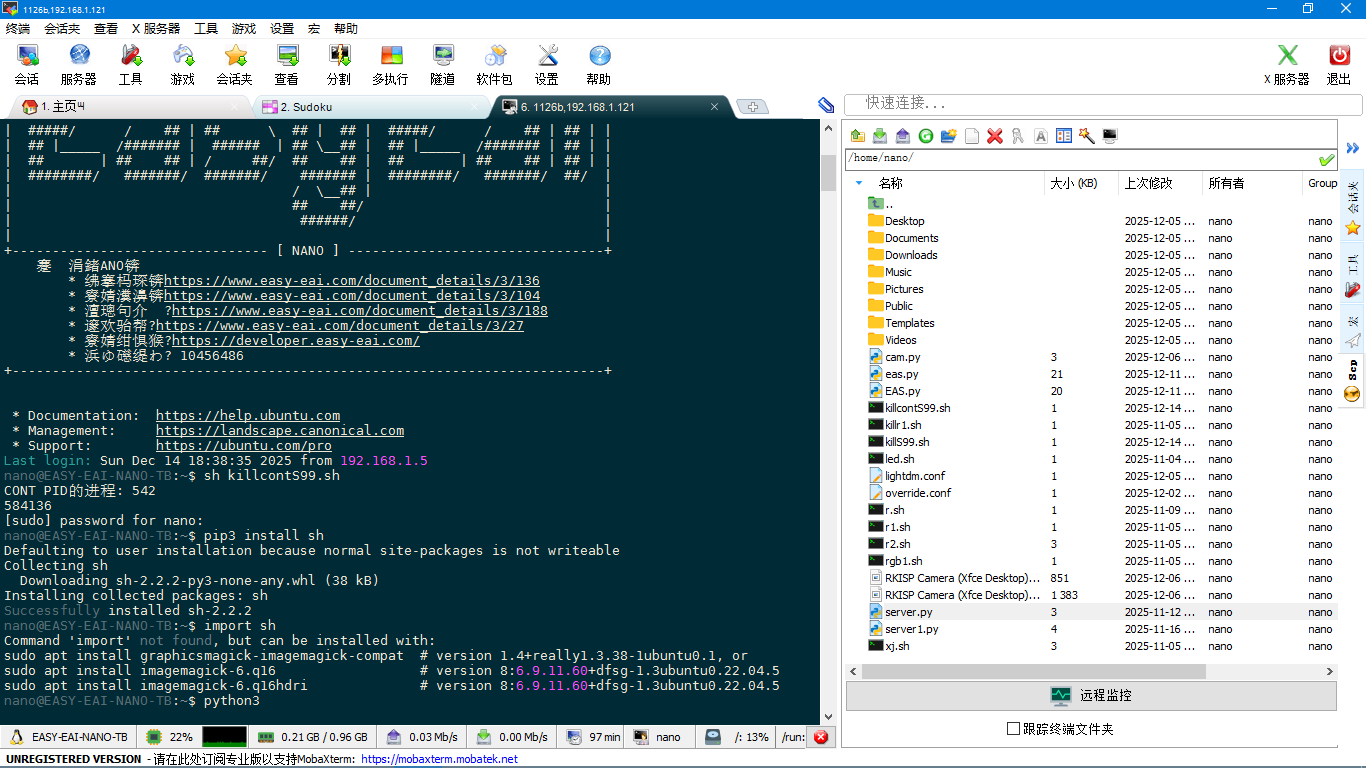
主执行文件将保存于开发板的"/home/nano/eas.py"路径。
"""
EASY EAI Nano-TB(RV1126B) 红绿灯按钮项目
Web服务器主程序 - 集成GPIO控制与HTTP服务
"""
import time
import json
import os
from http.server import BaseHTTPRequestHandler, HTTPServer
from datetime import datetime
import threading
import sh
class TrafficLightController:
"""红绿灯控制器类"""
def __init__(self):
self.device_files = {
'load_button': '/sys/bus/iio/devices/iio:device0/in_voltage0_raw',
'red_led': '/sys/class/pwm/pwmchip1/pwm0/duty_cycle',
'green_led': '/sys/class/pwm/pwmchip2/pwm0/duty_cycle',
'yellow_led': '/sys/class/gpio/gpio178/value'
}
self.current_state = "UNKNOWN"
self.button_pressed = False
self.running = True
self.timing = {
"GREEN": 5,
"YELLOW": 2,
"RED": 5
}
self.state_history = []
print("init_sudo", "-CONT")
viv=sh. pgrep ('-f', 'S99')
print(len(viv))
print(sh.sudo("kill", "-CONT",viv[0:len(viv)-1]))
self.monitor_thread = threading.Thread(target=self.status_monitor)
self.monitor_thread.daemon = True
self.monitor_thread.start()
def read_device_file(self, device_key):
"""读取设备文件内容"""
try:
file_path = self.device_files[device_key]
if os.path.exists(file_path):
with open(file_path, 'r') as f:
content = f.read().strip()
return content
except Exception as e:
print(f"读取设备文件 {device_key} 失败: {e}")
return None
def write_device_file(self, device_key, value):
"""写入设备文件"""
try:
file_path = self.device_files[device_key]
with open(file_path, 'w') as f:
f.write(str(value))
return True
except Exception as e:
print(f"写入设备文件 {device_key} 失败: {e}")
return False
def get_button_state(self):
"""获取按钮状态"""
raw_value = self.read_device_file('load_button')
if raw_value:
return len(raw_value) > 0 and int(raw_value) < 1000
return False
def set_led_state(self, led_color, state):
"""设置LED灯状态"""
led_key = f"{led_color.lower()}_led"
if state:
return self.write_device_file(led_key, 1000000)
else:
return self.write_device_file(led_key, 0)
def status_monitor(self):
"""状态监控线程"""
while self.running:
try:
button_state = self.get_button_state()
if button_state and not self.button_pressed:
self.button_pressed = True
print("按钮被按下")
elif not button_state:
self.button_pressed = False
time.sleep(0.1)
except Exception as e:
print(f"状态监控错误: {e}")
time.sleep(1)
def normal_operation(self):
"""正常操作循环"""
while self.running and not self.button_pressed:
self.set_led_state('red', False)
self.set_led_state('yellow', False)
self.set_led_state('green', True)
self.current_state = "GREEN"
self.log_state("GREEN")
time.sleep(self.timing["GREEN"])
if not self.running or self.button_pressed:
break
self.set_led_state('green', False)
self.set_led_state('yellow', True)
self.current_state = "YELLOW"
self.log_state("YELLOW")
time.sleep(self.timing["YELLOW"])
if not self.running or self.button_pressed:
break
self.set_led_state('yellow', False)
self.set_led_state('red', True)
self.current_state = "RED"
self.log_state("RED")
time.sleep(self.timing["RED"])
def button_response(self):
"""按钮响应处理"""
print("执行按钮响应操作")
self.set_led_state('green', False)
self.set_led_state('yellow', False)
self.set_led_state('red', True)
self.current_state = "RED"
self.log_state("RED_BUTTON")
time.sleep(3)
self.set_led_state('red', False)
self.set_led_state('green', True)
self.current_state = "GREEN"
self.log_state("GREEN_BUTTON")
time.sleep(3)
self.button_pressed = False
def log_state(self, state):
"""记录状态历史"""
record = {
"timestamp": datetime.now().isoformat(),
"state": state,
"button_pressed": self.button_pressed
}
self.state_history.append(record)
if len(self.state_history) > 100:
self.state_history.pop(0)
def get_system_status(self):
"""获取系统完整状态"""
button_state = self.get_button_state()
if button_state and not self.button_pressed:
self.button_pressed = True
print("按钮被按下")
elif not button_state:
self.button_pressed = False
"""获取led状态"""
raw_value = self.read_device_file('red_led')
print(raw_value[0])
if raw_value[0]=="1":
print("REDled close")
else:
print("REDled open:%s",raw_value)
self.current_state = "RED"
self.log_state("RED")
raw_value = self.read_device_file('green_led')
if raw_value[0]=="1":
print("GREEN close")
else:
print("GREEN open",raw_value)
self.current_state = "GREEN"
self.log_state("GREEN")
raw_value = self.read_device_file('yellow_led')
if raw_value[0]=="1":
print("yellow_led open")
self.current_state = "YELLOW"
self.log_state("YELLOW")
else:
print("yellow_led close")
return {
"current_state": self.current_state,
"button_pressed": self.button_pressed,
"running": self.running,
"last_update": datetime.now().isoformat(),
"state_history": self.state_history[-10:]
}
def cleanup(self):
"""清理资源"""
self.running = False
self.set_led_state('red', False)
self.set_led_state('yellow', False)
self.set_led_state('green', False)
class TrafficLightHandler(BaseHTTPRequestHandler):
"""HTTP请求处理器"""
def __init__(self, *args, **kwargs):
self.controller = TrafficLightController()
super().__init__(*args, **kwargs)
def do_GET(self):
"""处理GET请求"""
if self.path == '/':
self.send_index_page()
elif self.path == '/status':
self.send_status_data()
elif self.path == '/control':
self.send_control_panel()
elif self.path == '/auto':
self.send_status_auto()
elif self.path == '/red':
self.send_red_panel()
elif self.path == '/yellow':
self.send_status_yellow()
elif self.path == '/green':
self.send_green_panel()
else:
self.send_error(404, "页面未找到")
def send_index_page(self):
"""发送主页面"""
self.send_response(200)
self.send_header('Content-type', 'text/html; charset=utf-8')
self.end_headers()
html_content = self.generate_html_interface()
self.wfile.write(html_content.encode('utf-8'))
def send_status_auto(self):
print("kill", "-CONT")
viv=sh. pgrep ('-f', 'S99')
print(viv)
print(sh.sudo("kill", "-CONT",viv[0:3]))
"""发送主页面"""
self.send_response(200)
self.send_header('Content-type', 'text/html; charset=utf-8')
self.end_headers()
html_content = self.generate_html_interface()
self.wfile.write(html_content.encode('utf-8'))
def send_red_panel(self):
print("kill", "-STOP")
viv=sh. pgrep ('-f', 'S99')
print(viv)
print(sh.sudo("kill", "-STOP",viv[0:3]))
try:
file_path = self.device_files['green_led']
with open(file_path, 'w') as f:
f.write(str(1000000))
except Exception as e:
print(f"写入设备文件 'green_led' 失败: {e}")
try:
file_path = self.device_files['yellow_led']
with open(file_path, 'w') as f:
f.write(str(0))
except Exception as e:
print(f"写入设备文件 'yellow_led' 失败: {e}")
try:
file_path = self.device_files['red_led']
with open(file_path, 'w') as f:
f.write(str(900000))
except Exception as e:
print(f"写入设备文件 'red_led' 失败: {e}")
self.current_state = "RED"
self.log_state("RED_web_BUTTON")
self.running = False
"""发送主页面"""
self.send_response(200)
self.send_header('Content-type', 'text/html; charset=utf-8')
self.end_headers()
html_content = self.generate_html_interface()
self.wfile.write(html_content.encode('utf-8'))
def send_status_data(self):
"""发送状态数据(JSON格式)"""
self.send_response(200)
self.send_header('Content-type', 'application/json')
self.end_headers()
status_data = self.controller.get_system_status()
json_output = json.dumps(status_data, ensure_ascii=False, indent=2)
self.wfile.write(json_output.encode('utf-8'))
def send_control_panel(self):
"""发送控制面板"""
self.send_response(200)
self.send_header('Content-type', 'text/html')
self.end_headers()
control_html = """
<!DOCTYPE html>
<html>
<head>
<title>红绿灯控制面板</title>
<meta charset="utf-8">
<style>
body { font-family: Arial, sans-serif; margin: 20px; }
.status-panel { background: #f5f5f5; padding: 15px; border-radius: 8px; margin-bottom: 20px; }
.control-buttons { margin: 10px 0; }
button { padding: 8px 16px; margin: 5px; border: none; border-radius: 4px; cursor: pointer; }
.red { background: #dc2626; color: white; }
.yellow { background: #d97706; color: white; }
.green { background: #059669; color: white; }
.traffic-light {
width: 100px; height: 300px; background: #333;
border-radius: 15px; padding: 20px; margin: 20px auto;
}
.light {
width: 60px; height: 60px; border-radius: 50%;
margin: 15px auto; opacity: 0.3; transition: opacity 0.3s;
}
.light.active { opacity: 1; }
</style>
</head>
<body>
<h1>红绿灯控制系统</h1>
<div class="status-panel">
<h3>当前状态</h3>
<div id="current-status">加载中...</div>
</div>
<div class="traffic-light">
<div class="light red" id="red-light"></div>
<div class="light yellow" id="yellow-light"></div>
<div class="light green" id="green-light"></div>
</div>
<div class="control-buttons">
<button class="red" onclick="controlLight('red')">红灯</button>
<button class="yellow" onclick="controlLight('yellow')">黄灯</button>
<button class="green" onclick="controlLight('green')">绿灯</button>
</div>
<script>
function controlLight(color) {
fetch('/control', {
method: 'POST',
headers: {'Content-Type': 'application/json'},
body: JSON.stringify({action: 'set_light', color: color})
.then(response => response.json())
.then(data => updateDisplay(data)));
}
function updateDisplay(status) {
document.getElementById('current-status').textContent =
'当前状态: ' + status.current_state +
' | 按钮: ' + (status.button_pressed ? '按下' : '未按下');
['red', 'yellow', 'green'].forEach(color => {
const light = document.getElementById(color + '-light');
light.classList.remove('active');
});
document.getElementById(status.current_state.toLowerCase() + '-light').classList.add('active');
}
// 自动刷新状态
setInterval(() => {
fetch('/status')
.then(response => response.json())
.then(data => updateDisplay(data)));
}, 2000);
</script>
</body>
</html>
"""
self.wfile.write(control_html.encode('utf-8'))
def generate_html_interface(self):
"""生成完整的HTML界面"""
return """
<!DOCTYPE html>
<html lang="zh-CN">
<head>
<meta charset="UTF-8">
<meta name="viewport" content="width=device-width, initial-scale=1.0">
<title>RV1126B 红绿灯控制系统</title>
<script src="https://cdn.tailwindcss.com"></script>
<link rel="stylesheet" href="https://cdnjs.cloudflare.com/ajax/libs/font-awesome/6.0.0/css/all.min.css">
<style>
.traffic-light {
width: 120px;
height: 320px;
background: #333;
border-radius: 20px;
padding: 20px;
margin: 20px auto;
box-shadow: 0 10px 25px rgba(0,0,0,0.3);
}
.light {
width: 80px;
height: 80px;
border-radius: 50%;
margin: 10px auto;
opacity: 0.3;
transition: all 0.3s ease;
}
.light.active {
opacity: 1;
box-shadow: 0 0 20px currentColor;
}
.red { background: #ef4444; }
.yellow { background: #eab308; }
.green { background: #22c55e; }
.pulse {
animation: pulse 2s infinite;
}
@keyframes pulse {
0% { opacity: 0.3; }
50% { opacity: 1; }
100% { opacity: 0.3; }
}
</style>
</head>
<body class="bg-gray-100 min-h-screen">
<div class="container mx-auto px-4 py-8">
<div class="text-center mb-8">
<h1 class="text-4xl font-bold text-gray-800 mb-2">
<i class="fas fa-traffic-light mr-3"></i>
RV1126B 红绿灯控制系统
</h1>
<p class="text-gray-600">基于EASY EAI Nano-TB开发板的智能交通灯演示</p>
</div>
<div class="grid grid-cols-1 lg:grid-cols-3 gap-8">
<div class="bg-white rounded-2xl shadow-lg p-6">
<h2 class="text-2xl font-semibold text-gray-800 mb-4">
<i class="fas fa-lightbulb mr-2"></i>交通灯状态
</h2><span id="running" class="font-medium"></span>
<div class="traffic-light">
<div class="light red" id="red-light"></div>
<div class="light yellow" id="yellow-light"></div>
<div class="light green" id="green-light"></div>
</div>
<div class="mt-6 text-center">
<div id="current-state" class="text-xl font-semibold mb-4"></div>
<div class="space-y-2">
<div class="flex justify-between">
<span class="text-gray-600">按钮状态:</span>
<span id="button-status" class="font-medium"></span>
</div>
<div class="flex justify-between">
<span class="text-gray-600">最后更新:</span>
<span id="last-update" class="font-medium"></span>
</div>
</div>
</div>
</div>
<div class="bg-white rounded-2xl shadow-lg p-6">
<h2 class="text-2xl font-semibold text-gray-800 mb-4">
<i class="fas fa-sliders-h mr-2"></i>控制面板
</h2>
<div class="space-y-4">
<div>
<label class="block text-sm font-medium text-gray-700 mb-2">控制模式</label>
<div class="flex space-x-2">
<button onclick="window.location.href='../auto'" class="w-full bg-green-600 hover:bg-green-700 text-white font-medium py-2 px-4 rounded-lg transition">
自动循环
</button>
</div>
</div>
</div>
<div class="space-y-4">
<div>
<label class="block text-sm font-medium text-gray-700 mb-2">手动控制</label>
<div class="flex space-x-2">
<button class="red" onclick="window.location.href='../red'">红灯</button>
<button class="yellow" onclick="window.location.href='../yellow'">黄灯</button>
<button class="green" onclick="window.location.href='../green'">绿灯</button>
</div>
</div>
</div>
<div class="bg-white rounded-2xl shadow-lg p-6">
<h2 class="text-2xl font-semibold text-gray-800 mb-4">
<i class="fas fa-history mr-2"></i>状态历史
</h2>
<div class="space-y-2 max-h-96 overflow-y-auto">
<div id="history-list"></div>
</div>
</div>
</div>
</div>
<div class="mt-8 bg-white rounded-2xl shadow-lg p-6">
<h2 class="text-2xl font-semibold text-gray-800 mb-4">
<i class="fas fa-info-circle mr-2"></i>系统信息
</h2>
<div class="grid grid-cols-2 md:grid-cols-4 gap-4">
<div class="text-center p-4 bg-blue-50 rounded-lg">
<i class="fas fa-microchip text-2xl text-blue-500 mb-2"></i>
<div class="font-semibold">RV1126B</div>
<div class="text-sm text-gray-600">处理器</div>
</div>
</div>
</div>
</div>
</div>
<script>
let currentState = 'UNKNOWN';
let autoRefresh = true;
function updateLights(state) {
document.querySelectorAll('.light').forEach(light => {
light.classList.remove('active', 'pulse');
});
const lightMap = {
'RED': 'red-light',
'YELLOW': 'yellow-light',
'GREEN': 'green-light'
};
if (lightMap[state]) {
const activeLight = document.getElementById(lightMap[state]);
if (activeLight) {
activeLight.classList.add('active');
if (state === 'YELLOW') {
activeLight.classList.add('pulse');
}
}
}
}
function updateStatusDisplay(status) {
const stateText = {
'RED': '?? 红灯',
'YELLOW': '?? 黄灯',
'GREEN': '?? 绿灯',
'UNKNOWN': '? 未知'
};
document.getElementById('current-state').textContent =
stateText[status.current_state] || stateText['UNKNOWN'];
document.getElementById('button-status').textContent =
status.button_pressed ? '?? 已按下' : '? 未按下';
document.getElementById('running').textContent =
status.running ? '?? 自动循环' : '? 手动控制';
document.getElementById('last-update').textContent =
new Date(status.last_update).toLocaleString();
updateLights(status.current_state);
}
function loadHistory(history) {
const historyList = document.getElementById('history-list');
historyList.innerHTML = '';
history.slice(-10).reverse().forEach(record => {
const stateIcon = {
'RED': '??',
'YELLOW': '??',
'GREEN': '??'
};
const item = document.createElement('div');
item.className = 'flex justify-between items-center p-2 border-b';
item.innerHTML = `
<div class="flex items-center">
<span class="text-lg mr-2">${stateIcon[record.state] || '?'}</span>
<div>
<div class="font-medium">${record.state}</div>
<div class="text-xs text-gray-500">${new Date(record.timestamp).toLocaleTimeString()}</div>
</div>
<span class="text-sm ${record.button_pressed ? 'text-red-500' : 'text-gray-500'}">
${record.button_pressed ? '??' : ''}
</span>
`;
historyList.appendChild(item);
});
}
async function fetchStatus() {
try {
const response = await fetch('/status');
const data = await response.json();
updateStatusDisplay(data);
loadHistory(data.state_history);
} catch (error) {
console.error('获取状态失败:', error);
}
}
document.addEventListener('DOMContentLoaded', function() {
fetchStatus();
setInterval(() => {
if (autoRefresh) {
fetchStatus();
}
}, 2000);
});
</script>
</body>
</html>
"""
def do_POST(self):
"""处理POST请求"""
if self.path == '/control':
content_length = int(self.headers['Content-Length'])
post_data = self.rfile.read(content_length)
try:
data = json.loads(post_data.decode('utf-8'))
if data.get('action') == 'set_light':
color = data.get('color')
if color in ['red', 'yellow', 'green']:
self.controller.set_led_state(color, True)
self.send_response(200)
self.send_header('Content-type', 'application/json')
self.end_headers()
response = {"status": "success", "message": f"{color}灯已设置"}
self.wfile.write(json.dumps(response).encode('utf-8'))
except Exception as e:
self.send_response(500)
self.end_headers()
error_response = {"status": "error", "message": str(e)}
self.wfile.write(json.dumps(error_response).encode('utf-8'))
else:
self.send_error(404, "接口未找到")
def log_message(self, format, *args):
"""自定义日志格式"""
print(f"{datetime.now().strftime('%Y-%m-%d %H:%M:%S')} - {format % args}")
def main():
"""主函数"""
host = '0.0.0.0'
port = 8080
server = HTTPServer((host, port), TrafficLightHandler)
print(f"红绿灯Web服务器已启动 - 访问地址: http://{host}:{port}")
try:
server.serve_forever()
except KeyboardInterrupt:
print("服务器正在关闭...")
server.shutdown()
print("服务器已关闭")
if __name__ == '__main__':
main()
登陆人nano 桌面了:
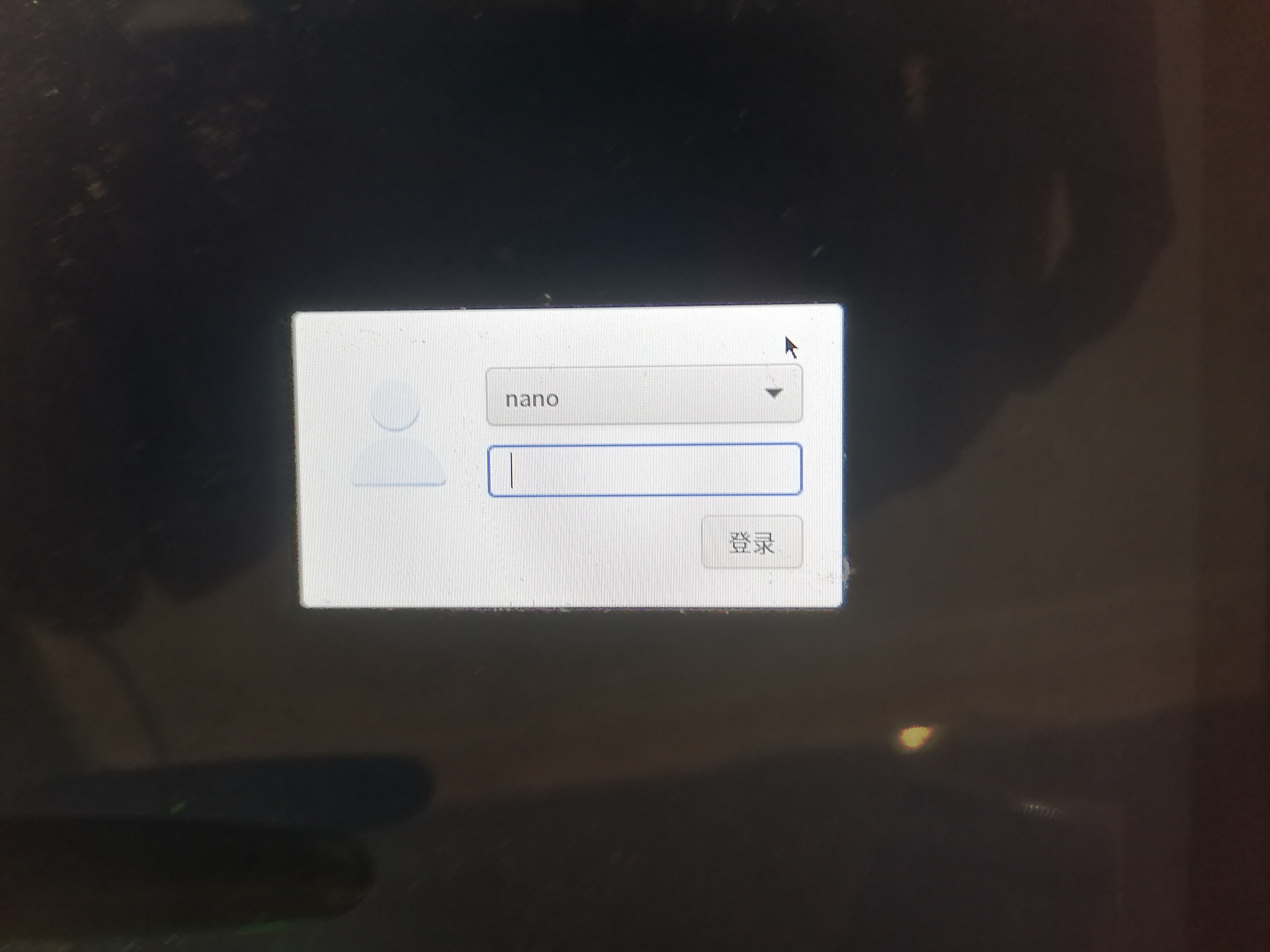 键盘键入
键盘键入123456
入
桌面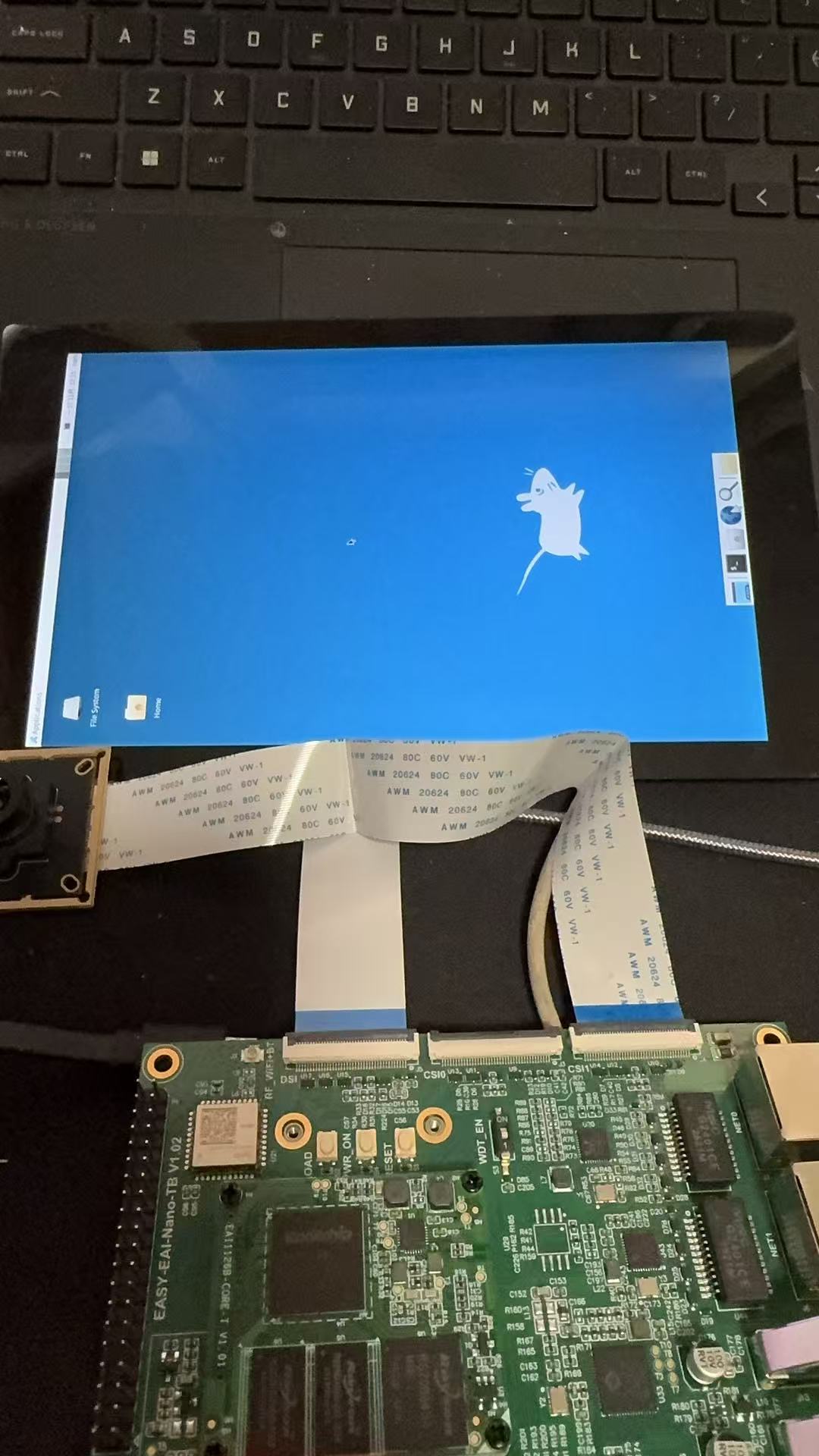 |
|
在桌面系统中的那个终端窗口输入下方命令启动chromium-browser:
chromium-browser --no-sandbox
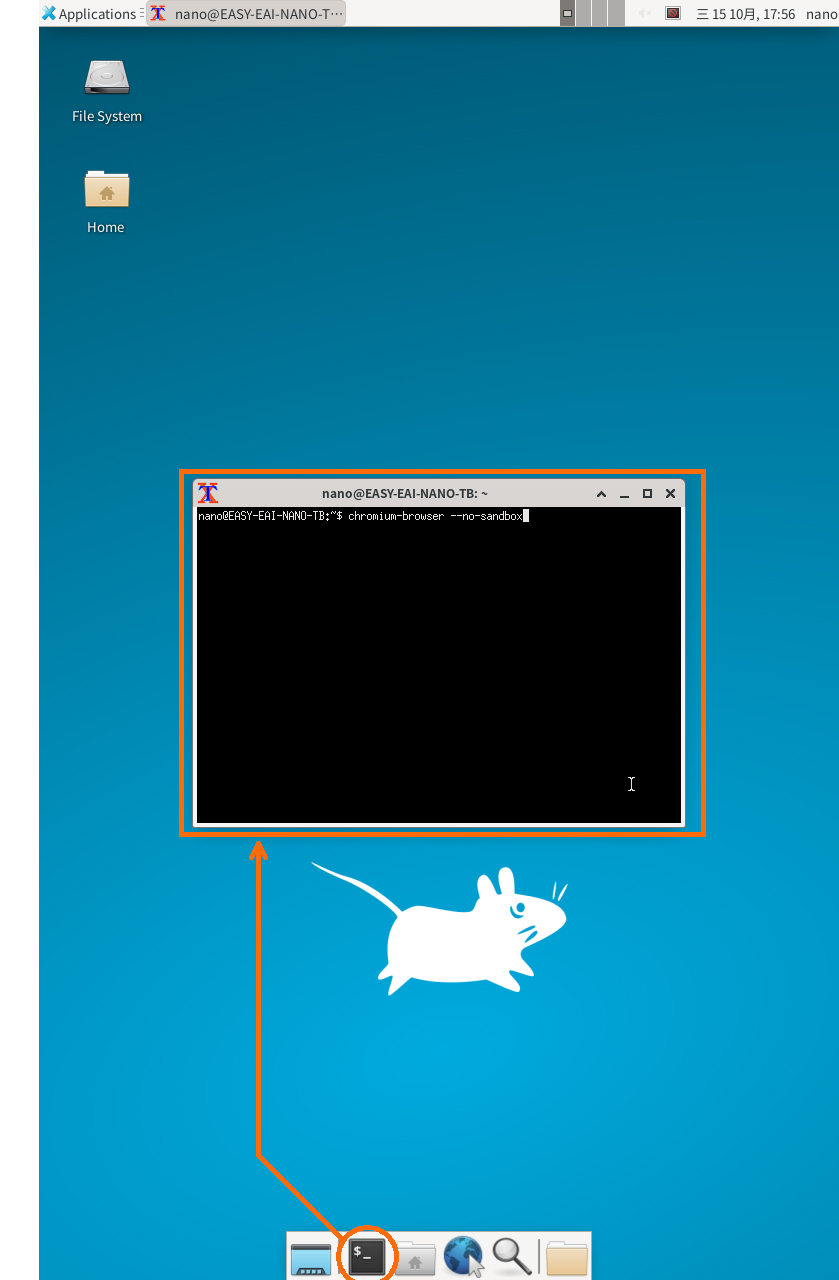
在桌面系统再一次启动终端窗口输入下方命令运行Python脚本启动Web服务。

终端窗口chromium-browser地址:
0.0.0.0:8080
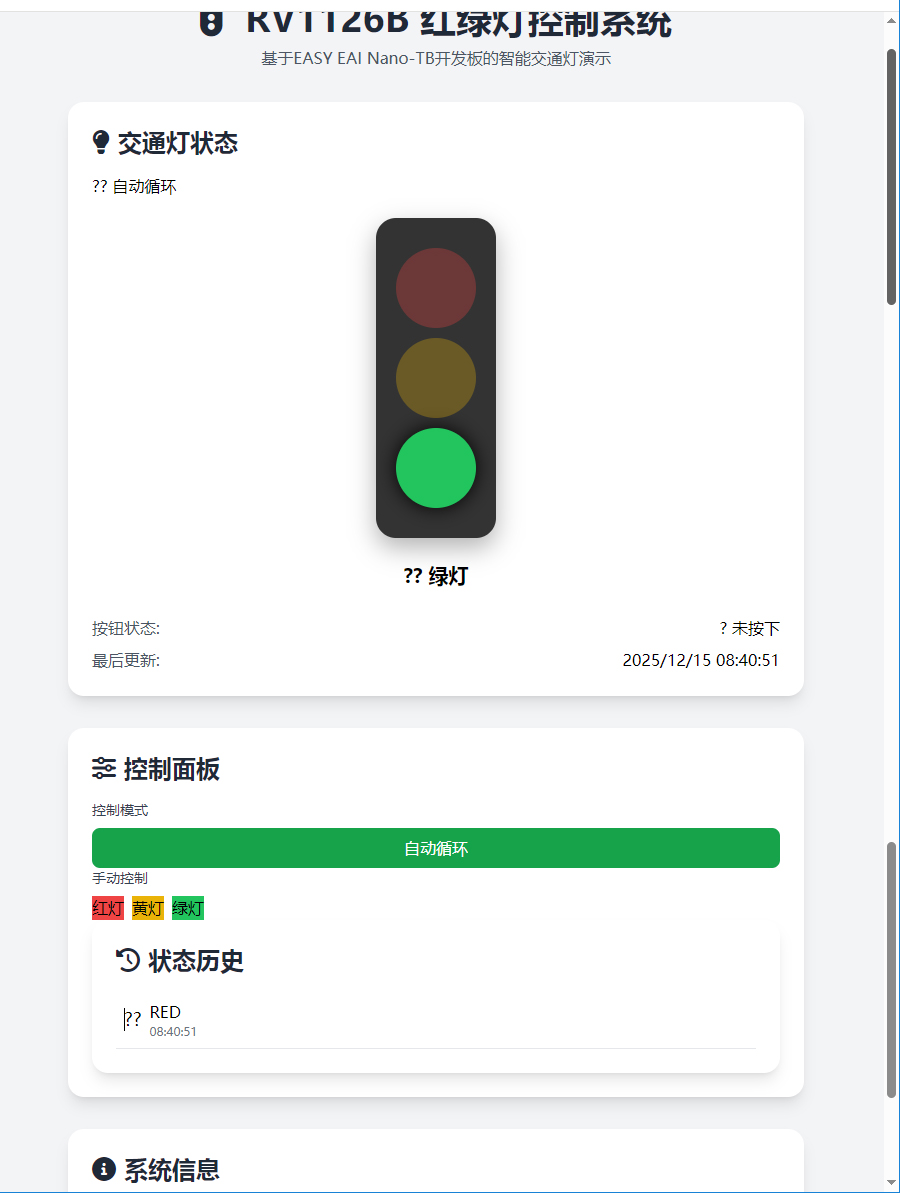
*可直接系统将在指定端口监听HTTP请求,通过网络中的任意设备访问服务地址,即可实现对硬件状态的远程监控。
权限设置
chmod u+x "eas.py"
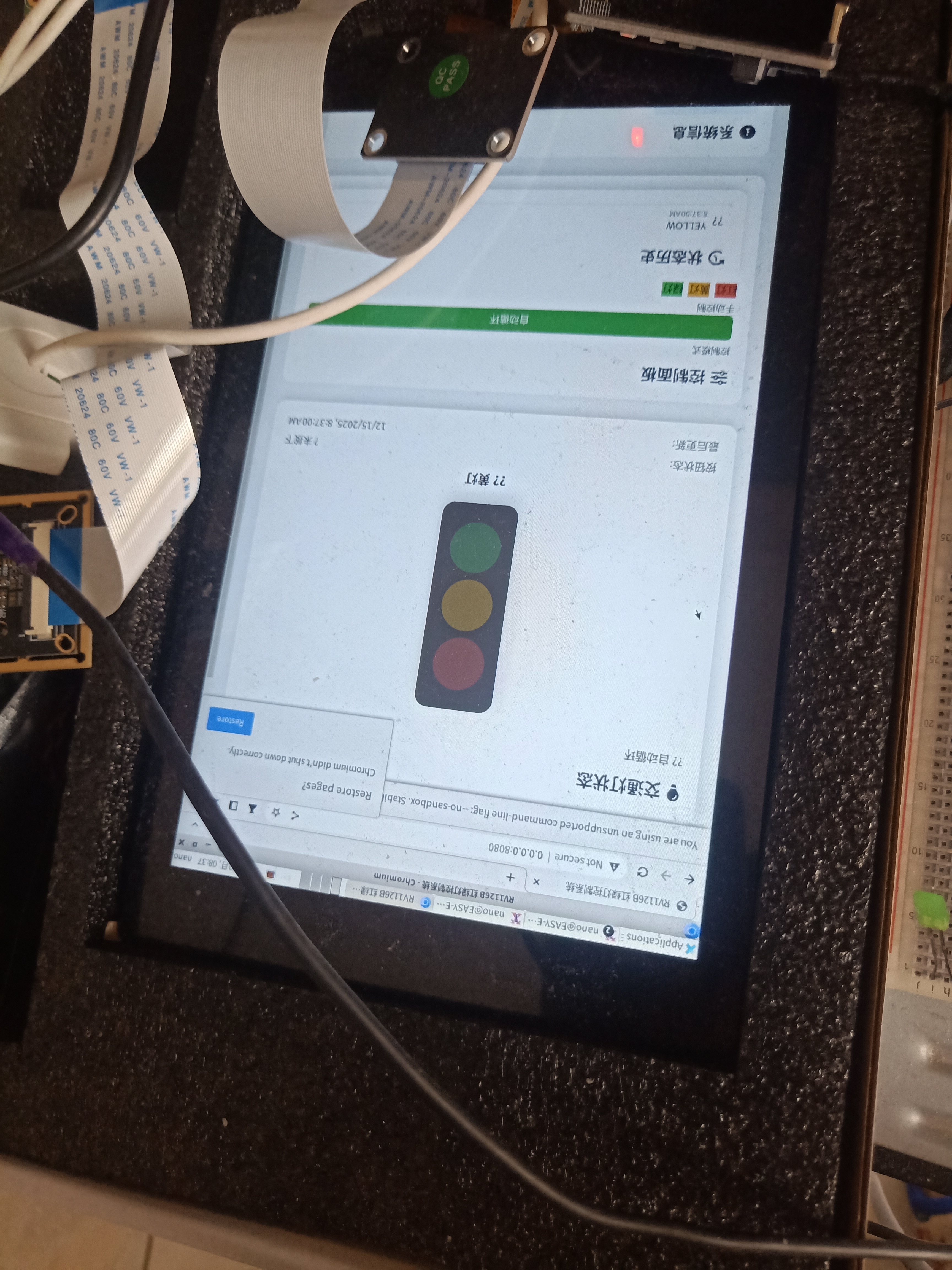
达到预期。

 /9
/9 



 工商网监
湘ICP备2023018690号
工商网监
湘ICP备2023018690号


 28
28


 淘帖
淘帖 518
518