
上期咱分享了环境搭建与GPIO点灯实验,今儿在此基础上,验证一下驱动8x8的LED点阵屏,由于之前的环境与VisionFive.gpio包已安装好,因此实验起来比较顺利。由参考的脚本可知,实验中需用到一个按键开关作为中断触发LED点阵屏显示。
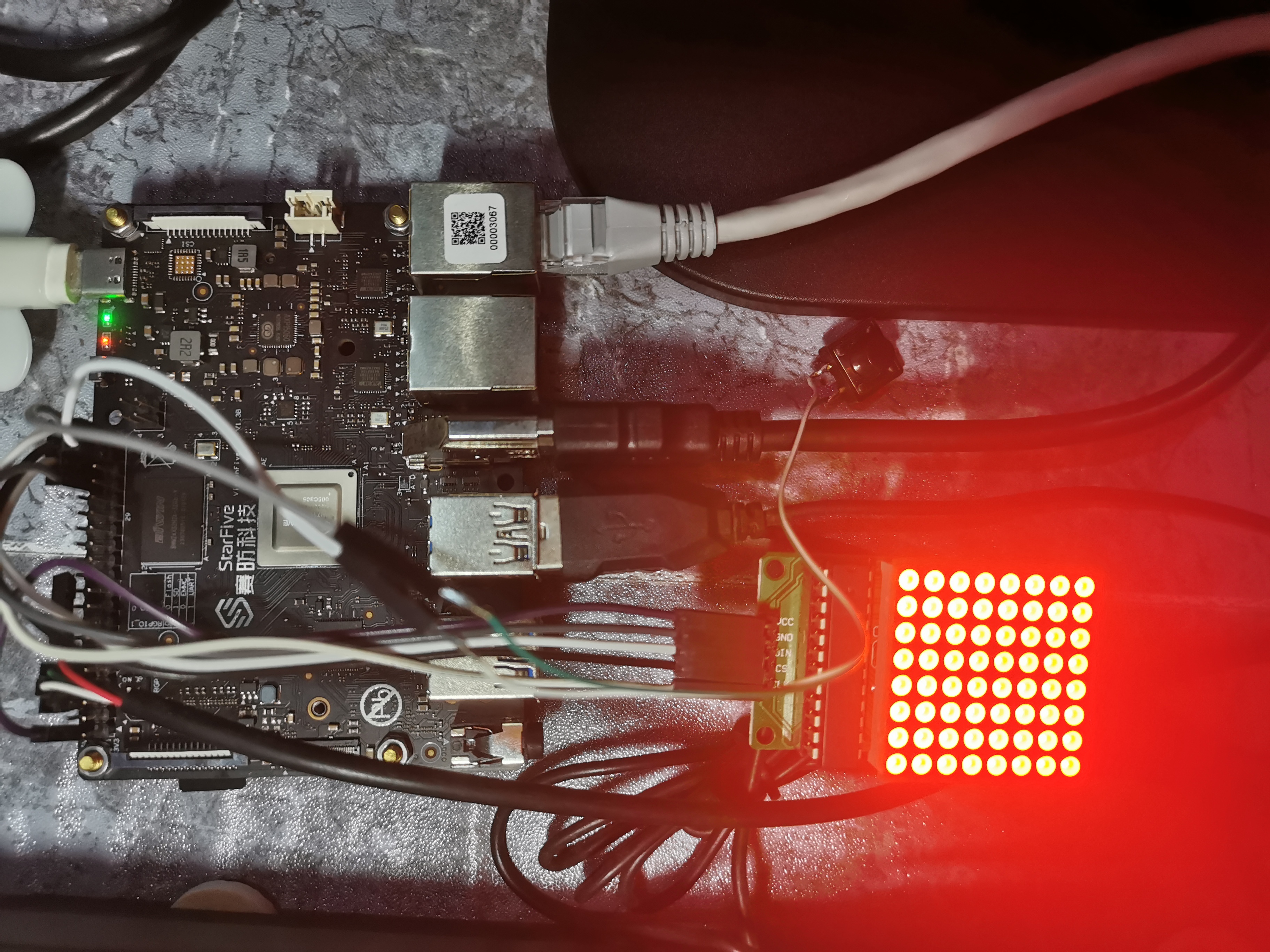
上图为硬件实物连接情况,初始上电状态为全亮LED点阵屏。
咱连接点阵屏与按键模块,是通过连接板上40-Pin Header。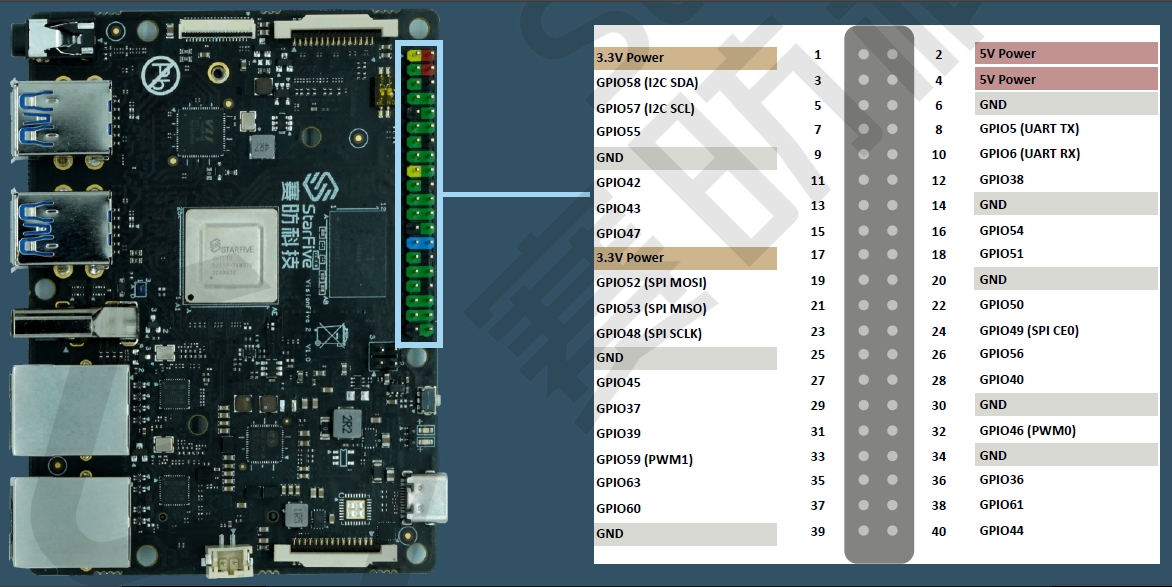
MAX7219串行点阵显示模块与板上40-Pin Header连接关系: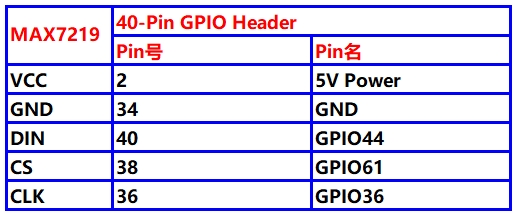
按键开关一端连接一个信号输入GPIO口,设定为低电平有效;另一端连接GND。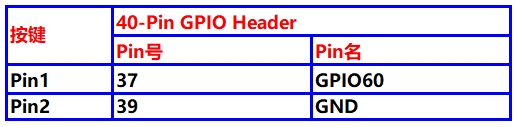
在官方提供的参考脚本上,扩展显示其它内容。
命令执行流程:
开发板上电后,串口输出显示待登录状态,说明网络已初始化完成,因此可使用PuTTY登录到开发板上。然后将普通用户变更为超级用户,然后进入到sample-code目录下,由于官方提供的参考脚本文件为只读属性,因此使用vim编辑是无效的,需要使用chmod命令将文件属性更新为可读可写。这样接下来可以使用vim编辑该脚本文件。命令执行步骤如下图所示: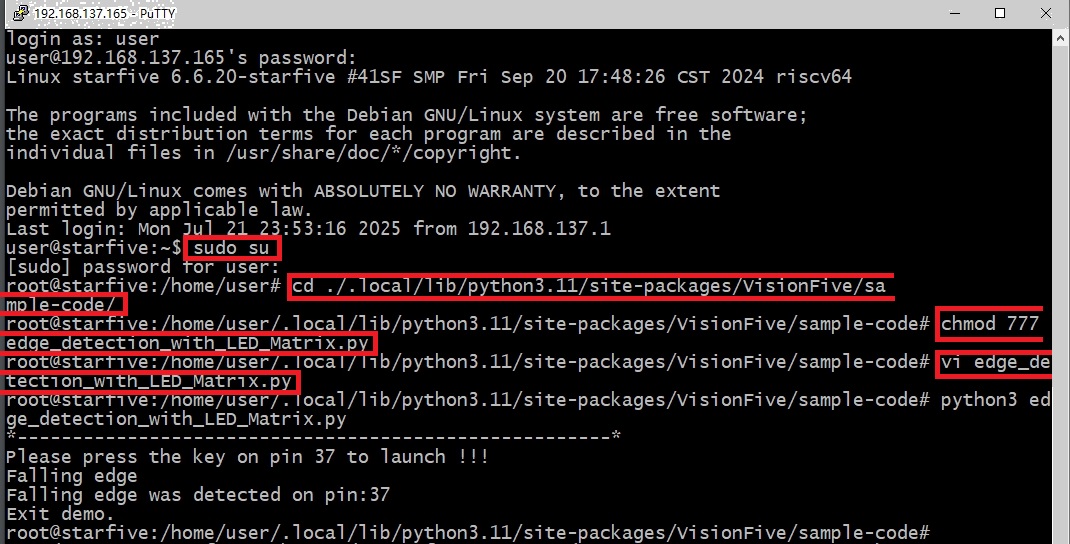
edge_detection_with_LED_Matrix.py代码完善如下:
"""
Step 1:
Please make sure the LED Dot Matrix is connected to the correct pins.
The following table describes how to connect LED Dot Matrix to the 40-pin header.
-----------------------------------------
___MAX7219_______Pin Number_____Pin Name
    VCC             2           5V Power
    GND             34           GND
    DIN             40          GPIO44
    CS              38          GPIO61
    CLK             36          GPIO36

Step 2:
Please make sure the button is connected to the correct pins.
The following table describes how to connect the button to the 40-pin header.
----------------------------------------
_______button____Pin Number_____Pin Name
    one end          37          GPIO60
  The other end      39            GND
-----------------------------------------
"""

import VisionFive.gpio as GPIO
import sys
import time

DIN = 40
CS = 38
CLK = 36

# Display logo data.
buffer = [
    "01111000",
    "01000000",
    "01111000",
    "01001111",
    "01111001",
    "00001111",
    "00000001",
    "00001111",
]
#Display arabic numeral 13.
buffer_13 = [
    "00001000",
    "00001000",
    "01111111",
    "01001001",
    "01001001",
    "01111111",
    "00001000",
    "00001000",
]
#Display arabic numeral 12.
buffer_12 = [
    "11111111",
    "10111101",
    "10010001",
    "10111101",
    "10010101",
    "10111101",
    "10000001",
    "11111111",
]
#Display arabic numeral 11.
buffer_11 = [
    "01111110",
    "00100000",
    "00100000",
    "00111110",
    "01000010",
    "10000100",
    "00010100",
    "00001000",
]
#Display arabic numeral 10.
buffer_10 = [
    "01001001",
    "01111111",
    "00001000",
    "00011111",
    "00100010",
    "01011010",
    "00000100",
    "00001000",
]
#Display arabic numeral 9.
buffer_9 = [
    "00111110",
    "00100010",
    "00100010",
    "00111110",
    "00000010",
    "00000010",
    "00000010",
    "00111110",
]
#Display arabic numeral 8.
buffer_8 = [
    "00111110",
    "00100010",
    "00100010",
    "00111110",
    "00100010",
    "00100010",
    "00100010",
    "00111110",
]
#Display arabic numeral 7.
buffer_7 = [
    "00111110",
    "00000010",
    "00000010",
    "00000100",
    "00000100",
    "00000100",
    "00001000",
    "00001000",
]
#Display arabic numeral 6.
buffer_6 = [
    "00111110",
    "00100000",
    "00100000",
    "00111110",
    "00100010",
    "00100010",
    "00100010",
    "00111110",
]
#Display arabic numeral 5.
buffer_5 = [
    "00011110",
    "00010000",
    "00010000",
    "00011110",
    "00000010",
    "00000010",
    "00000010",
    "00011110",
]
# Display arabic numeral 4.
buffer_4 = [
    "00000100",
    "00001000",
    "00010000",
    "00100100",
    "01000100",
    "01111111",
    "00000100",
    "00000100",
]
# Display arabic numeral 3.
buffer_3 = [
    "00011100",
    "00100010",
    "00000010",
    "00011110",
    "00000010",
    "00100010",
    "00011100",
    "00000000",
]
# Display arabic numeral 2.
buffer_2 = [
    "00011100",
    "00100010",
    "00000010",
    "00000100",
    "00001000",
    "00010000",
    "00111110",
    "00000000",
]
# Display arabic numeral 1.
buffer_1 = [
    "00001000",
    "00011000",
    "00001000",
    "00001000",
    "00001000",
    "00001000",
    "00001000",
    "00011100",
]

# LED turn off data.
buffer_off = ["0", "0", "0", "0", "0", "0", "0", "0"]

key_pin = 37

def sendbyte(bytedata):
    for bit in range(0, 8):
        if (bytedata << bit) & 0x80:
            GPIO.output(DIN, GPIO.HIGH)
        else:
            GPIO.output(DIN, GPIO.LOW)

        # Configure the voltage level of CLK as high.
        GPIO.output(CLK, GPIO.HIGH)
        # Configure the voltage level of CLK as low.
        GPIO.output(CLK, GPIO.LOW)

def WriteToReg(regaddr, bytedata):
    GPIO.output(CS, GPIO.HIGH)
    GPIO.output(CS, GPIO.LOW)
    GPIO.output(CLK, GPIO.LOW)

    sendbyte(regaddr)
    sendbyte(bytedata)

    GPIO.output(CS, GPIO.HIGH)

def disp_clean():
    time.sleep(0.1)
    for i in range(0, 8):
        # Write data to register address. Finally the LED matrix displays StarFive logo.
        WriteToReg(i + 1, int(buffer_off[i], 2))
    time.sleep(1)

def disp_numeral_13_to_1():
    for id in range(13, 0, -1):
        buffer_name = "buffer_{}".format(id)
        list_buffer = eval(buffer_name)
        for j in range(0, 8):
            # Write data to the register address. Finally the LED matrix displays with numeral from 5 to 1.
            WriteToReg(j + 1, int(list_buffer[j], 2))
        time.sleep(1)
        for j in range(0, 8):
            # Write data to the register address. Finally turn off the LED matrix.
            WriteToReg(j + 1, int(buffer_off[j], 2))
        time.sleep(0.1)

def flash_logo():
    for loop in range(0, 5):
        for j in range(0, 8):
            # Write data to the register address. Finally turn off the LED matrix.
            WriteToReg(j + 1, int(buffer_off[j], 2))
        time.sleep(0.1)
        for j in range(0, 8):
            # Write data to the register address. Finally the LED matrix displays with StarFive logo.
            WriteToReg(j + 1, int(buffer[j], 2))
        time.sleep(0.1)

def WriteALLReg():
    # Clean screen
    disp_clean()
    # Display numeral from 5 to 1
    disp_numeral_13_to_1()
    # Flash starfive logo.
    flash_logo()

def initData():
    WriteToReg(0x09, 0x00)  # Set the decode mode.
    WriteToReg(0x0A, 0x03)  # Set the brightness.
    WriteToReg(0x0B, 0x07)  # Set the scan limitation.
    WriteToReg(0x0C, 0x01)  # Set the power mode.
    WriteToReg(0x0F, 0x00)

# the callback function for edge detection
def detect(pin, edge_type):
    if edge_type == 1:
        et = "Rising"
    else:
        et = "Falling"
    if GPIO.getmode() == GPIO.BOARD:
        print("{} edge was detected on pin:{}".format(et, pin))
    else:
        print("{} edge was detected on GPIO:{}".format(et, pin))
    WriteALLReg()

    global flag
    flag = 1


def main():
    global flag
    flag = 0
    # Set the gpio mode as 'BOARD'.
    GPIO.setmode(GPIO.BOARD)
    # Configure the direction of DIN, CS, and CLK as output.
    GPIO.setup(DIN, GPIO.OUT)
    GPIO.setup(CS, GPIO.OUT)
    GPIO.setup(CLK, GPIO.OUT)
    # Configure the direction of key_pin as input.
    GPIO.setup(key_pin, GPIO.IN)
    # Both edge rising and falling can be detected, also set bouncetime(unit: millisecond) to avoid jitter
    GPIO.add_event_detect(key_pin, GPIO.FALLING, callback=detect, bouncetime=2)

    initData()

    print("*------------------------------------------------------*")
    print("Please press the key on pin {} to launch !!!".format(key_pin))

    while True:
        if flag == 1:
            disp_clean()
            GPIO.cleanup()
            break

    print("Exit demo.")

if __name__ == "__main__":
    sys.exit(main())
当然开发者也可以使用FileZilla拷贝工具,通过ssh来传递python脚本文件,但没有vim来的高效。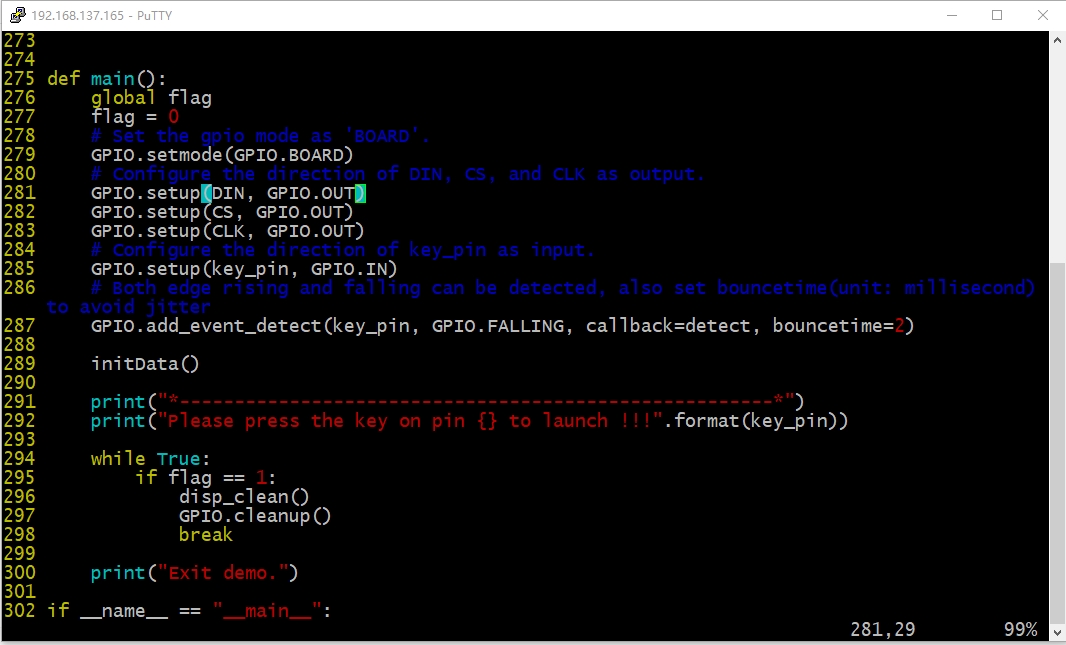
使用vim编写完,保存退出后,运行“python3 edge_detection_with_LED_Matrix.py”命令即可验证效果。
开机后,第一次运行脚本程序,如顶部视频所示,由全屏点亮,通过按一下开关,触发点阵屏显示。显示内容有“中国万岁”,“9”~“1”数字倒计显示,接着闪烁显示赛防科技的logo后熄灭点阵屏。再次运行脚本程序,如底部视频所示,按键后可再次触发。
昉·星光 2开机后,说实话CPU处的温度还是有点高的,用手指触碰感觉很烫手,后期会考虑添上一个16mm x 16mm的散热片。在终端中,root模式下运行shutdown指令,在没有连接串口调试工具前提下,可做到完全关断电源,体验不错。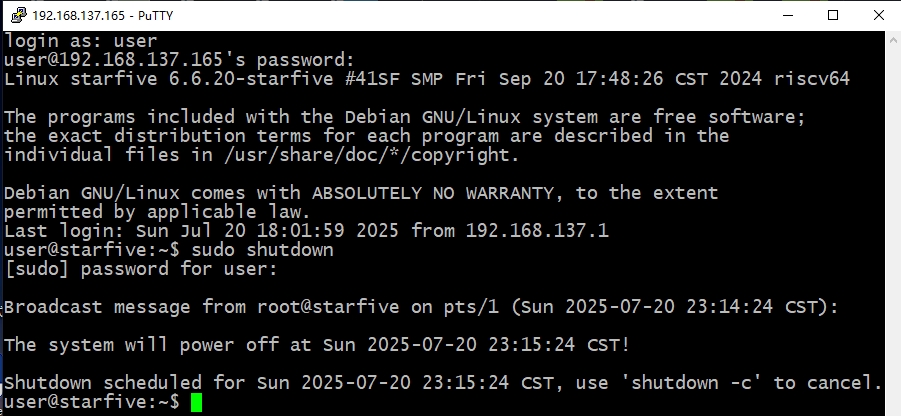
更多回帖


