获取示例源码
git clone
git@gitee.com:tsing-qiu/waft-ui.git
硬件准备
ui demo整体说明
页面导航
文件路径:waft-ui/src/app.json
{
"pages": [
"pages/home/index",
"pages/test-dialog/index",
"pages/test-list/index",
"pages/test-loading/index",
"pages/test-swiper/index",
"pages/test-video/index",
"pages/test-picker/index",
"pages/test-slider/index",
"pages/test-button/index",
"pages/test-navbar/index",
"pages/test-tabs/index",
"pages/test-image/index"
],
"default": "pages/home/index",
"window": {
"default
title": "Waft UI"
}
}
每个组件会有一个单独的page展示,例如button的示例在waft-ui/src/pages/test-button目录下。这篇文章主要讲解button widget的使用。
Button使用
我们进入button demo目录,waft-ui/src/pages/test-button。目录内容如下:
test-button % tree
.
├── index.acss
├── index.axml
├── index.json
└── index.ts
样式文件
看到我们熟悉的四个文件,index.acss对应的是css样式文件,
.wrapper {
max-width: 100%;
height: 100%;
display: flex;
flex-direction: column;
justify-content: flex-start;
align-items: center;
background-color: #eeeeee;
}
.title {
color: #2b3852;
font-size: 26rpx;
margin: 5rpx 0;
}
.flex {
display: flex;
flex-direction: row;
justify-content: flex-start;
align-content: flex-start;
flex-wrap: wrap;
}
.dot {
width: 10rpx;
}
ui上使用的样式在这里定义。
布局文件
index.amxl是gui的布局文件
按钮类型
禁用状态
按钮大小
带图标
自定义颜色
逻辑控制
index.ts文件包括了页面的逻辑控制:
import { Page, Props, history, Event} from 'waft';
import { JSON, JSONObject } from "waft-json";
export class TestList extends Page {
constructor(props: Props) {
super(props);
}
}
效果展示
在waft-ui目录执行npm start,拉起cli,编译
.build --aot=true --aotTarget=riscv64
使用模拟器查看
.simulator --width=800 --height=480 --wasm=build/app.wasm
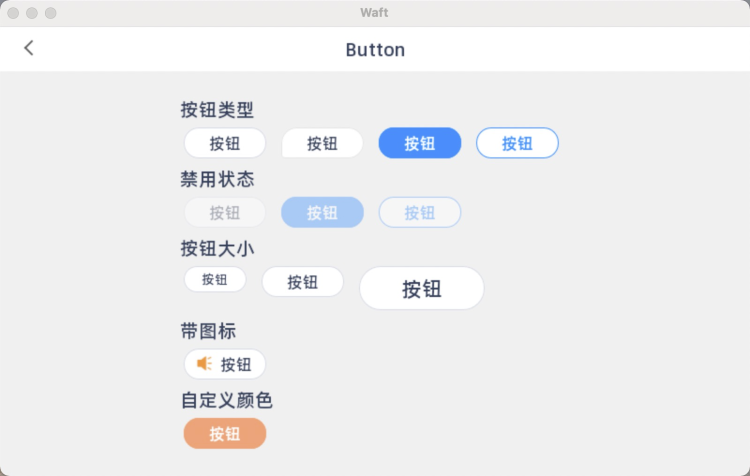
demo中涵盖了button的各种样式,包括禁用状态、button带图标,自定义颜色等,开发者可以参考布局文件学习使用。
当然,还可以把build/目录下的app.aot推送到真机上运行。
文章转载自:平头哥芯片开放社区 作者:晚空