简介
littlevgl是一款开源跨平台GUI, 详细了解可以前往其官网https://littlevgl.com/
准备工作
本人使用的是MDK建立工程文件,内部必须包含已有的触摸屏驱动。前往littlevgl官网下载源码https://github.com/littlevgl/lvgl
开始移植
1、在已有的工程目录下新建一个文件夹命名为lvgl用于存放littlevgl源码,并将前面下载的源码解压至新建文件夹lvgl中。
2、将lvgl中的lv_conf_template.h文件改名为lv_conf.h,用Noteoad++打开此文件,将文件中的#if 0改为#if 1。
3、修改lv_conf.h中的几个重要参数:LV_HOR_RES_MAX、LV_VER_RES_MAX、LV_COLOR_DEPTH,分别代表是LCD的长、宽以及颜色深度。这个根据个人LCD的不同自行更改。下面是我修改的:
/* Maximal horizontal and vertical resolution to support by the library.*/
#define LV_HOR_RES_MAX (800)
#define LV_VER_RES_MAX (480)
/* Color depth:
* - 1: 1 byte per pixel
* - 8: RGB233
* - 16: RGB565
* - 32: ARGB8888
*/
#define LV_COLOR_DEPTH 16
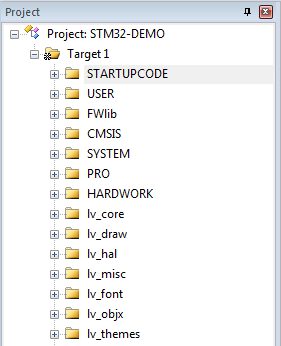
6、使用manage project items 对话框为工程建立lvgl文件夹下src下所有文件夹组,并往对应组里面添加对应文件夹下的全部C文件。
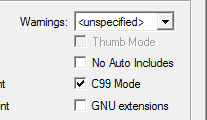
 7、由于KEIL 默认不支持匿名联合体,而littlevGL中使用了,所以需要在Options for target…对话框–> C/C++子项中勾选上C99 Mode。
 8、初始化缓冲区、注册两个函数分别为.flush_cb和.read_cb,前者为GUI对LCD的填充函数,后者是GUI读取触摸屏触摸函数。
static lv_disp_buf_t disp_buf;
static lv_color_t buf_1[LV_HOR_RES_MAX * 10];
//static lv_color_t buf_2[LV_HOR_RES_MAX * 5];
void lv_buff_init(void)
{
lv_disp_buf_init(&disp_buf, buf_1, NULL, LV_HOR_RES_MAX*10);
}
static void my_flush_cb(lv_disp_drv_t * disp_drv, const lv_area_t * area, lv_color_t * color_p)
{
/*The most simple case (but also the slowest) to put all pixels to the screen one-by-one*/
int32_t x, y;
for(y = area->y1; y <= area->y2; y++) {
for(x = area->x1; x <= area->x2; x++) {
//LCD_Fast_DrawPoint(x, y, color_p->full);
LCD->LCD_REG=lcddev.setxcmd;
LCD->LCD_RAM=x>>8;
LCD->LCD_REG=lcddev.setxcmd+1;
LCD->LCD_RAM=x&0XFF;
LCD->LCD_REG=lcddev.setycmd;
LCD->LCD_RAM=y>>8;
LCD->LCD_REG=lcddev.setycmd+1;
LCD->LCD_RAM=y&0XFF;
LCD->LCD_REG=lcddev.wramcmd;
LCD->LCD_RAM=color_p->full;
color_p++;
}
}
/* IMPORTANT!!!
* Inform the graphics library that you are ready with the flushing*/
lv_disp_flush_ready(disp_drv);
}
void lv_tft_init(void)
{
lv_disp_drv_t disp_drv; /*A variable to hold the drivers. Can be local variable*/
lv_disp_drv_init(&disp_drv); /*Basic initialization*/
disp_drv.buffer = &disp_buf; /*Set an initialized buffer*/
disp_drv.flush_cb = my_flush_cb; /*Set a flush callback to draw to the display*/
lv_disp_drv_register(&disp_drv); /*Register the driver and save the created display objects*/
}
static bool input_read(lv_indev_drv_t * drv, lv_indev_data_t*data)
{
static int16_t last_x = 0;
static int16_t last_y = 0;
if(tp_dev.scan(0))//有按键按下时
{
data->point.x=tp_dev.x[0];
data->point.y = tp_dev.y[0];
data->state = LV_INDEV_STATE_PR;
last_x = data->point.x;
last_y = data->point.y;
return true;
}
else{
data->point.x = last_x;
data->point.y = last_y;
data->state = LV_INDEV_STATE_REL;
}
return false; /*No buffering now so no more data read*/
}
void lv_touch_init(void)
{
lv_indev_drv_t indev_drv;
lv_indev_drv_init(&indev_drv); /*Basic initialization*/
//evdev_init();
indev_drv.type = LV_INDEV_TYPE_POINTER; /*See below.*/
indev_drv.read_cb = input_read; /*See below.*/
lv_indev_drv_register(&indev_drv); /*Register the driver in LittlevGL*/
}
好了,简单移植工作到此结束。
littlevgl使用
到littlevgl官网下载demo示例https://littlevgl.com/download在工程目录下新建文件夹命名为lv_examples,解压至此文件夹下。然后在工程中新建demo组包含lv_exampleslv_appsdemo文件下的.c文件,并修改lv_exampleslv_ex_conf_template.h为lv_ex_conf.h。打开此文件
修改 LV_USE_DEMO
#define LV_USE_DEMO 1
1
启用demo。最后在main函数中进行GUI初始化并调用demo_create。
LCD_Init(); //初始化LCD
lv_init(); //lvgl内核初始化
TIM4_Int_Init(999,71);//启用定时器1ms
lv_buff_init(); //缓冲buff初始化
lv_tft_init();
tp_dev.init();
lv_touch_init();
demo_create();
while(1)
{
lv_task_handler();
}
最后,需要在定时器中断中调用lv_tick_inc(1)

简介
littlevgl是一款开源跨平台GUI, 详细了解可以前往其官网https://littlevgl.com/
准备工作
本人使用的是MDK建立工程文件,内部必须包含已有的触摸屏驱动。前往littlevgl官网下载源码https://github.com/littlevgl/lvgl
开始移植
1、在已有的工程目录下新建一个文件夹命名为lvgl用于存放littlevgl源码,并将前面下载的源码解压至新建文件夹lvgl中。
2、将lvgl中的lv_conf_template.h文件改名为lv_conf.h,用Noteoad++打开此文件,将文件中的#if 0改为#if 1。
3、修改lv_conf.h中的几个重要参数:LV_HOR_RES_MAX、LV_VER_RES_MAX、LV_COLOR_DEPTH,分别代表是LCD的长、宽以及颜色深度。这个根据个人LCD的不同自行更改。下面是我修改的:
/* Maximal horizontal and vertical resolution to support by the library.*/
#define LV_HOR_RES_MAX (800)
#define LV_VER_RES_MAX (480)
/* Color depth:
* - 1: 1 byte per pixel
* - 8: RGB233
* - 16: RGB565
* - 32: ARGB8888
*/
#define LV_COLOR_DEPTH 16
6、使用manage project items 对话框为工程建立lvgl文件夹下src下所有文件夹组,并往对应组里面添加对应文件夹下的全部C文件。
7、由于KEIL 默认不支持匿名联合体,而littlevGL中使用了,所以需要在Options for target…对话框–> C/C++子项中勾选上C99 Mode。
8、初始化缓冲区、注册两个函数分别为.flush_cb和.read_cb,前者为GUI对LCD的填充函数,后者是GUI读取触摸屏触摸函数。
static lv_disp_buf_t disp_buf;
static lv_color_t buf_1[LV_HOR_RES_MAX * 10];
//static lv_color_t buf_2[LV_HOR_RES_MAX * 5];
void lv_buff_init(void)
{
lv_disp_buf_init(&disp_buf, buf_1, NULL, LV_HOR_RES_MAX*10);
}
static void my_flush_cb(lv_disp_drv_t * disp_drv, const lv_area_t * area, lv_color_t * color_p)
{
/*The most simple case (but also the slowest) to put all pixels to the screen one-by-one*/
int32_t x, y;
for(y = area->y1; y <= area->y2; y++) {
for(x = area->x1; x <= area->x2; x++) {
//LCD_Fast_DrawPoint(x, y, color_p->full);
LCD->LCD_REG=lcddev.setxcmd;
LCD->LCD_RAM=x>>8;
LCD->LCD_REG=lcddev.setxcmd+1;
LCD->LCD_RAM=x&0XFF;
LCD->LCD_REG=lcddev.setycmd;
LCD->LCD_RAM=y>>8;
LCD->LCD_REG=lcddev.setycmd+1;
LCD->LCD_RAM=y&0XFF;
LCD->LCD_REG=lcddev.wramcmd;
LCD->LCD_RAM=color_p->full;
color_p++;
}
}
/* IMPORTANT!!!
* Inform the graphics library that you are ready with the flushing*/
lv_disp_flush_ready(disp_drv);
}
void lv_tft_init(void)
{
lv_disp_drv_t disp_drv; /*A variable to hold the drivers. Can be local variable*/
lv_disp_drv_init(&disp_drv); /*Basic initialization*/
disp_drv.buffer = &disp_buf; /*Set an initialized buffer*/
disp_drv.flush_cb = my_flush_cb; /*Set a flush callback to draw to the display*/
lv_disp_drv_register(&disp_drv); /*Register the driver and save the created display objects*/
}
static bool input_read(lv_indev_drv_t * drv, lv_indev_data_t*data)
{
static int16_t last_x = 0;
static int16_t last_y = 0;
if(tp_dev.scan(0))//有按键按下时
{
data->point.x=tp_dev.x[0];
data->point.y = tp_dev.y[0];
data->state = LV_INDEV_STATE_PR;
last_x = data->point.x;
last_y = data->point.y;
return true;
}
else{
data->point.x = last_x;
data->point.y = last_y;
data->state = LV_INDEV_STATE_REL;
}
return false; /*No buffering now so no more data read*/
}
void lv_touch_init(void)
{
lv_indev_drv_t indev_drv;
lv_indev_drv_init(&indev_drv); /*Basic initialization*/
//evdev_init();
indev_drv.type = LV_INDEV_TYPE_POINTER; /*See below.*/
indev_drv.read_cb = input_read; /*See below.*/
lv_indev_drv_register(&indev_drv); /*Register the driver in LittlevGL*/
}
好了,简单移植工作到此结束。
littlevgl使用
到littlevgl官网下载demo示例https://littlevgl.com/download在工程目录下新建文件夹命名为lv_examples,解压至此文件夹下。然后在工程中新建demo组包含lv_exampleslv_appsdemo文件下的.c文件,并修改lv_exampleslv_ex_conf_template.h为lv_ex_conf.h。打开此文件
修改 LV_USE_DEMO
#define LV_USE_DEMO 1
1
启用demo。最后在main函数中进行GUI初始化并调用demo_create。
LCD_Init(); //初始化LCD
lv_init(); //lvgl内核初始化
TIM4_Int_Init(999,71);//启用定时器1ms
lv_buff_init(); //缓冲buff初始化
lv_tft_init();
tp_dev.init();
lv_touch_init();
demo_create();
while(1)
{
lv_task_handler();
}
最后,需要在定时器中断中调用lv_tick_inc(1)

 举报
举报


